

In today’s tutorial, I took on my favorite theme – Divi by elegant themes – (which, among others, this site is built on) and used the “Secondary Nav” / “Secondary Menu” to link to the client’s social media profiles. The cool thing about this solution is that you
- don’t have to install any plugins at all and
- aren’t limited in which social media profiles you want to link to
(About that last point: by default, Divi lets you link to Facebook, Twitter and… Google+. As well as your RSS feed. That’s … not exactly up to date anymore, because many of my clients want to link to their YouTube channel, for example, or to LinkedIn or Instagram, and so on and so on.)
We’ll start with the video, and below the video there’s a step-by-step guide with code examples to copy / paste, so you’ll be able to pull this off effortlessly too.
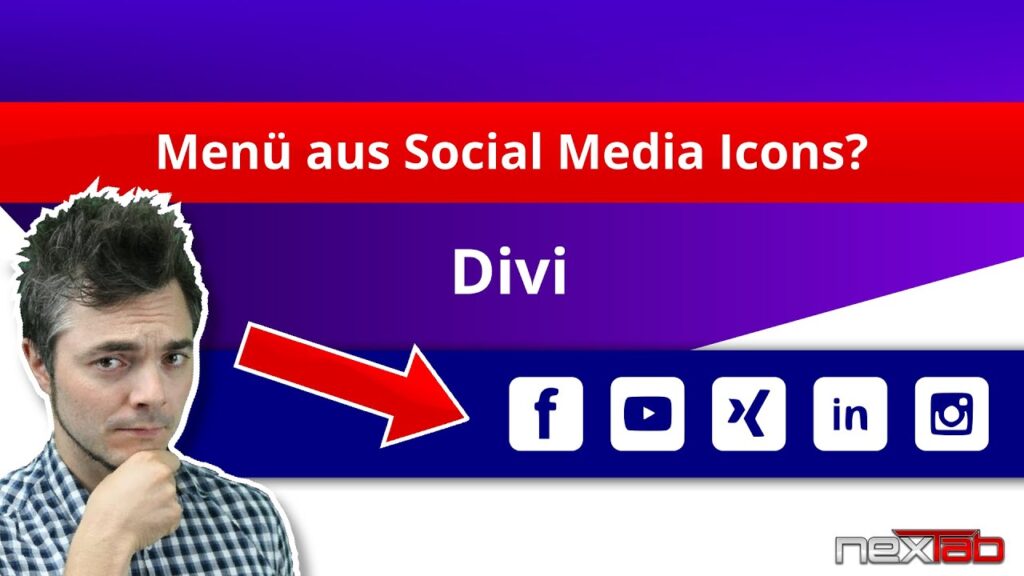
Step 1: Create a secondary menu
- Go to Appearance -> Menus and create a new menu
- Create a “Custom Link” there for each social media profile and add it to the menu
- Click “Screen Options” (top right) and check “Link Target”, “Title Attribute” and “CSS Classes”
- Set all links to open in a new tab and add “smlink” as a CSS class everywhere
- For each social network, you also need a separate CSS class per link, e.g. “sm_fb” for Facebook, “sm_xing” for XING, etc.
- Check the box for “Secondary Menu” in the menu settings
- Save the menu

Step 2: Add the CSS code
As explained in the video, you need to add the following code either to your child theme’s style.css or, alternatively, in the Divi options under “Divi” -> “Theme Options” -> “General” -> “Custom CSS” (at the very bottom of the first page of the theme options).
/* Secondary Nav */
#top-header #et-secondary-menu > ul > li.smlink a {
    text-align: left;
    position: relative;
    width: 15px;
    display: inline-block;
    vertical-align: top;
    font-size: 0;
}
#top-header #et-secondary-menu > ul > li.smlink a::before {
    color: #fff;
    content: "\e0cb";
    font-family: 'ETModules';
    font-size: 19px;
    position: absolute;
}
After that, you need to add a separate piece of CSS for every social network that shouldn’t be displayed with the LinkedIn icon with rounded corners. Here are the most common codes, starting with social media icons WITHOUT a border:
#top-header #et-secondary-menu > ul > li.smlink.sm_fb a::before { content: "\e093"; }
#top-header #et-secondary-menu > ul > li.smlink.sm_twitter a::before { content: "\e094"; }
#top-header #et-secondary-menu > ul > li.smlink.sm_pinterest a::before { content: "\e095"; }
#top-header #et-secondary-menu > ul > li.smlink.sm_google a::before { content: "\e096"; }
#top-header #et-secondary-menu > ul > li.smlink.sm_insta a::before { content: "\e09a"; }
#top-header #et-secondary-menu > ul > li.smlink.sm_vimeo a::before { content: "\e09c"; }
#top-header #et-secondary-menu > ul > li.smlink.sm_linkedin a::before { content: "\e09d"; }
#top-header #et-secondary-menu > ul > li.smlink.sm_yt a::before { content: "\e0a3"; }
Social media icons with a circular border:
#top-header #et-secondary-menu > ul > li.smlink.sm_fb a::before { content: "\e0aa"; }
#top-header #et-secondary-menu > ul > li.smlink.sm_twitter a::before { content: "\e0ab"; }
#top-header #et-secondary-menu > ul > li.smlink.sm_pinterest a::before { content: "\e0ac"; }
#top-header #et-secondary-menu > ul > li.smlink.sm_google a::before { content: "\e0ad"; }
#top-header #et-secondary-menu > ul > li.smlink.sm_insta a::before { content: "\e0b1"; }
#top-header #et-secondary-menu > ul > li.smlink.sm_vimeo a::before { content: "\e0b3"; }
#top-header #et-secondary-menu > ul > li.smlink.sm_linkedin a::before { content: "\e0b4"; }
#top-header #et-secondary-menu > ul > li.smlink.sm_yt a::before { content: "\e0ba"; }
Social media icons with a square, rounded border:
#top-header #et-secondary-menu > ul > li.smlink.sm_fb a::before { content: "\e0c1"; }
#top-header #et-secondary-menu > ul > li.smlink.sm_twitter a::before { content: "\e0c2"; }
#top-header #et-secondary-menu > ul > li.smlink.sm_pinterest a::before { content: "\e0c3"; }
#top-header #et-secondary-menu > ul > li.smlink.sm_google a::before { content: "\e0c4"; }
#top-header #et-secondary-menu > ul > li.smlink.sm_insta a::before { content: "\e0c8"; }
#top-header #et-secondary-menu > ul > li.smlink.sm_vimeo a::before { content: "\e0ca"; }
#top-header #et-secondary-menu > ul > li.smlink.sm_linkedin a::before { content: "\e0cb"; }
#top-header #et-secondary-menu > ul > li.smlink.sm_yt a::before { content: "\e0d1"; }
And finally, here’s the code for the XING logo (which you can download here):
#top-header #et-secondary-menu > ul > li.smlink.social_xing a::before {
    content: "";
    background: url('/wp-content/themes/AndreasDudas/img/xing_logo-squared.png');
    background-size: contain;
    width: 19px;
    height: 19px;
    border-radius: 4px;
    background-position: center;
    margin-top: -4px;
}
With these code snippets and the video above, you should hopefully have everything you need to implement this feature on your own site.
P.S.: If all of this is “too much hassle” and you’d rather have us take care of it, we’ll get it done for you for a flat fee of 50 EUR. 😉
P.P.S.: If you didn’t watch the whole video, you missed the best part! At the very end, we point you to our GDPR package, which takes all those annoying adjustments your site needs right off your hands. You’ll find more info on this awesome product on our brand-new Academy page.






Leave a Reply