
What you need:
- Divi
- A child theme
- A reasonably decent understanding of how to copy / paste
Divi is an incredibly flexible theme and we’re huge fans – we’ve built more than 90% of the websites we’ve developed over the past 3 years with Divi! It has also become the most popular premium theme for WordPress, leaving the competition behind. Despite its great flexibility, every now and then you run into the limits of this otherwise so versatile page builder – namely when you want to nest Divi modules inside one another.
A concrete example: multi-column content inside a tab module
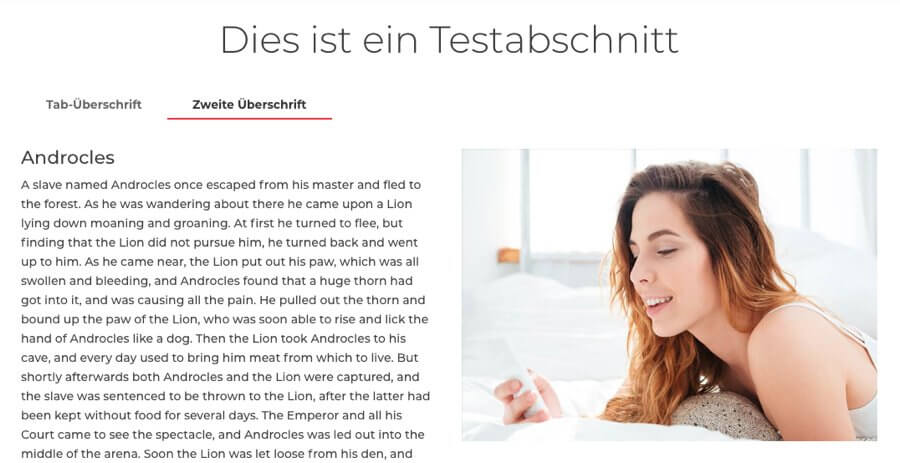
Our client Christian Wiederer wanted a tab module for the website of his SEO agency Five 8 in which each tab’s content would be displayed in two columns, i.e. “text on the left / image on the right.” Basically, you can do something like this with a floating image, but then optimizing it for mobile devices gets fairly tricky (because the text wraps around the image, or the image suddenly gets far too wide and only 2 – 3 words ever appear next to it).
A standard two-column layout that switches to a single-column view on mobile devices would be much nicer – exactly the way a row with 2 columns does by default in Divi. After some trial and error, we came up with a solution that gives you a lot more flexibility when building Divi pages: a custom shortcode that simply loads the content of an element saved in the library.
How to do it
First, go to the Divi Library and click “Add New.” Choose Row (important!) as the layout type and give your row a name that’s easy to remember, e.g. “two-column content for tab module.”
Then start editing the row: set it to have two (or more) columns, put a text module on the left and an image on the right. Save the layout afterwards. If you now look at your browser’s address bar, you can spot the post ID. It’s the number after “?post=“. So in the next screenshot, for example, it’s “218831.”

Now all you have to do is paste the code for the new shortcode into your child theme’s functions.php. Here’s the complete code:
function nxt_content_shortcode( $atts, $content = null ) {
	$a = shortcode_atts( array(
		'id' => '',
	), $atts );
	if($a['id'] == '') return "Fehler - es wurde keine ID angegeben!";

	return '<div class="nxt_content_container">' . do_shortcode(get_post_field('post_content', $a['id'])) . '</div>';
}

// Initialize the shortcode defined above after WordPress is done initializing
add_action('init', 'nxt_add_custom_shortcodes');
function nxt_add_custom_shortcodes() {
	add_shortcode('inhalt', 'nxt_content_shortcode');
}
And with that, you’re pretty much done! You can now create a tab module (or a slider, etc.) on another page and then, in the content area of the tab where you want to insert the two-column content you just saved in the library, enter the shortcode:
[inhalt id="218831"]
That’s all there is to it. It should look roughly like this:

This opens up a whole range of new possibilities, since you can now nest Divi modules inside one another to your heart’s content. You’ve probably rarely used a row INSIDE a tab module before, but now it’s pretty easy to do. By now we’ve become big fans of the fairly simple “inhalt” shortcode, because you can do all sorts of other things with it – for example, with a few extra additions and some styling, you can make individual modules appear only when another module is clicked. That way, a blurb can suddenly be set up as the trigger for a longer block of text – and that even works without any JavaScript or jQuery. We’ll go into this topic in more detail in one of our upcoming posts.
P.S.: We currently stream a lot of the website optimizations we do on Twitch on a regular basis. Be sure to stop by our channel and hit follow so you get notified when we go live again!







Leave a Reply